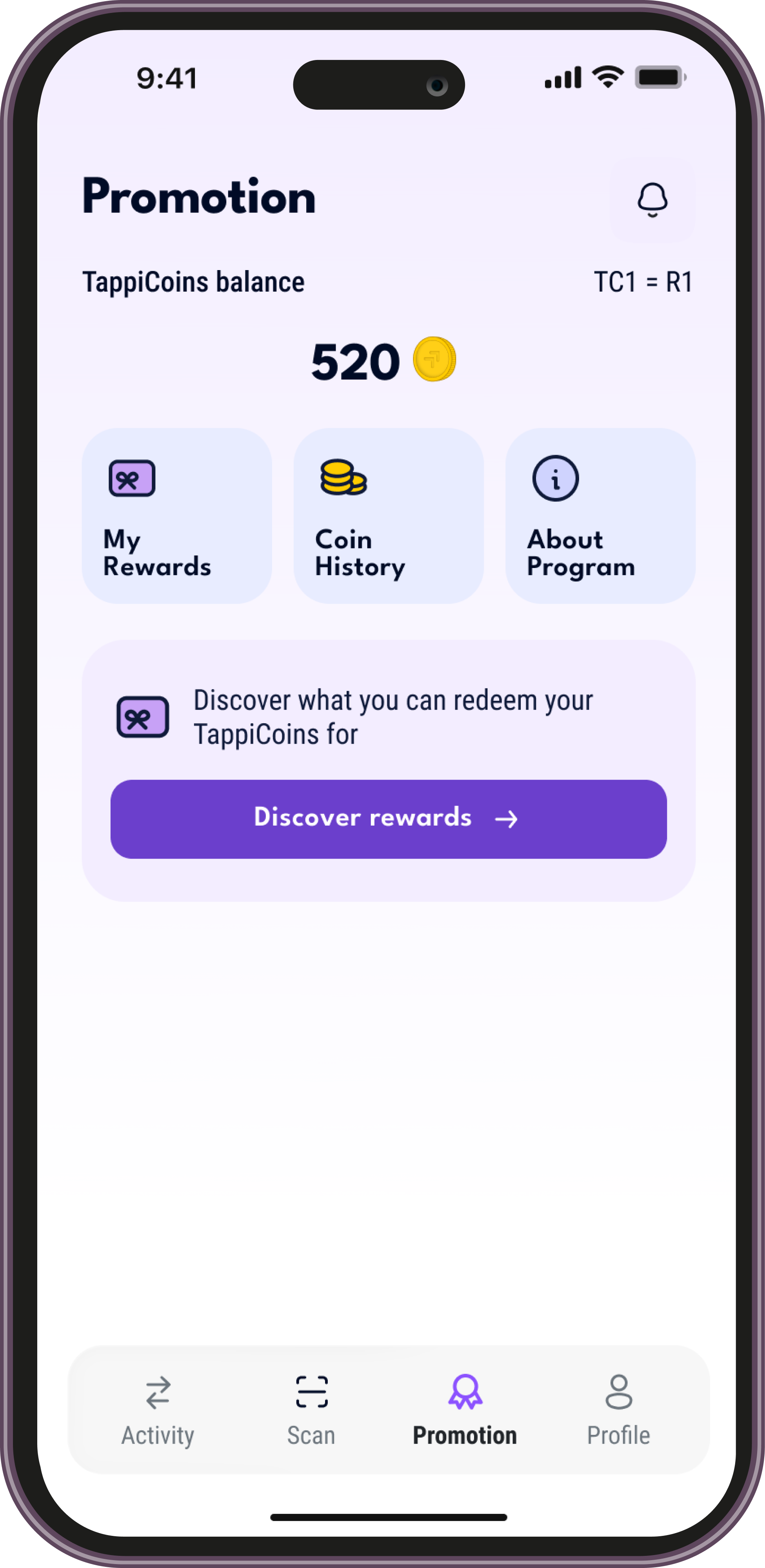
Scan a merchant's QR code and pay straight from your bank account. Use the TappiPay app, or pay through WhatsApp if you'd rather not download anything.
Scan a merchant's QR code, confirm the amount and approve the payment in your banking app. With the app you can also manage your account and earn rewards on qualifying transactions.

No app? No problem. Scan the merchant's QR code, confirm the amount in WhatsApp and approve the payment in your banking app.


1. Log on and tap Register your cellphone number for PayShap Now
2. Tap Register Now (your number is filled in for you)
3. Fill in your details, accept the T&Cs and tap Next
4. Choose to set up your ShapID and tap Next
5. Confirm your details and tap Done
1. Log on and tap PayShap (top row) or Menu (bottom right)
2. Tap PayShap, then Register ShapID
3. Review the PayShap information and tap Continue
4. Fill in your details and tap Continue
5. Check your details, accept the T&Cs and tap Continue
Good news: your ShapID is already active. It's the cellphone number you bank with (cellphonenumber@capitec).
To check it:
1. Sign in and tap the menu (3 dots, top right)
2. Tap Settings, then PayShap Settings
3. Accept the T&Cs and tap Continue. Your ShapID is shown
1. Sign in and tap More (3 dots, bottom right)
2. Tap Register
3. Confirm your cellphone number, choose your ShapID and fill in your details
4. Choose the account you want to be paid into
5. Agree to the T&Cs and tap Next
1. Log on and tap Pay, then Payment settings
2. Tap PayShap, then Register ShapID
3. Fill in your details, accept the T&Cs and tap Continue
4. Enter the OTP sent to you and tap Submit
5. Select your ShapID and tap Confirm
Nothing to set up. You already have a ShapID: it's the cellphone number you bank with.
1. Open the Investec app and tap Manage (bottom centre)
2. Tap the PayShap Maintenance icon
3. Select the account you want to register
4. Tap Register a ShapID and select your cellphone number
5. Tap Next to confirm and accept the T&Cs
Not available yet – coming soon.
1. Log on and tap Manage
2. Tap PayShap, then Manage ShapIDs
3. Choose your cellphone number and tap Review
4. Accept the T&Cs and tap Confirm
5. Tap Done
1. Open the Absa app
2. Tap the Pay icon
3. Select PayShap Requests
4. Approve the new request
1. Open the African Bank app
2. Tap Payments and Transfers
3. Select PayShap
4. Your requests are listed under the PayShap menu
This one is a bit harder to find:
1. Open the Capitec app
2. Tap Transact on the bottom menu
3. Tap PayShap
4. Tap Request a Payment
5. Tap Received to find the payment request
6. Follow the on-screen prompts
1. Tap the notification dropdown, log in and accept the request
2. Tapped Not Now by mistake? Go back into the banking app
3. Tap PayShap Request under Outstanding Actions on the home screen
1. Open the FNB app
2. Tap Pay on the home screen
3. Tap Pay again
4. Tap Payment Requests
5. Also check Just for You for app messages
1. Open the GoTyme app
2. Tap the notification bell (top right)
3. Tap the payment request notification
4. Tap Pay Now
1. Open the Investec app
2. Tap Transact on the bottom menu
3. Select Pay
4. Look for the PayShap option, where all requests sent to you are listed
Not available yet – coming soon. You can't pay with TappiPay from Nedbank just yet, so please pay another way for now.
This one is a bit harder to find:
1. Open the Standard Bank app
2. Tap Transact on the bottom menu
3. Tap Pay
4. In Pay, tap PayShap
5. Tap PayShap Requests
6. Follow the on-screen prompts
TappiPay doesn't charge you to pay, and your payments earn you TappiCoins.

TappiPay Assistant
Online · Typically replies instantly